Getting Things Done with markdown notes and todos on a Mac.
You’ve read Getting Things Done, maybe twice. You know the loop: capture everything, clarify what it means, put it where it belongs, review it every week, then do the work. The trouble is the tools. Your next actions live in a task app, the project support material lives in notes, and the two drift apart until the weekly review means reconciling three places.
A lot of GTD people end up wanting the opposite: notes and todos in the same files, with the action sitting right next to the thinking that produced it. Paperkites keeps every note as a plain markdown file on your Mac, treats any - [ ] line in any note as a todo, and gathers all of them into one list.
This article shows how to run a GTD system in Paperkites: the capture inbox, projects as notes, next actions as todos, and a weekly review you can actually finish.
Setting up a GTD vault
Make a folder for the vault, for example ~/gtd, and open it in Paperkites. Then give it a light structure:
projects/holds one note per project, any outcome that takes more than one action.reference/holds material you want to keep but don’t need to act on.reviews/holds one note per weekly review.
⌘\ shows the sidebar, with folders that mirror the vault on disk, so these three folders are always a keystroke away.
Contexts work well as nested tags. In GTD terms a context is where or with what you can do an action, so:
#at/computer,#at/calls,#at/errands,#at/home#waitingfor things you’ve handed to someone else#somedayfor the someday/maybe list
Put the context tag on the line with the todo or at the top of a note whose actions all share it. You can rename any of these later with ⌃r, which changes the tag in every file at once.
The capture box as your inbox
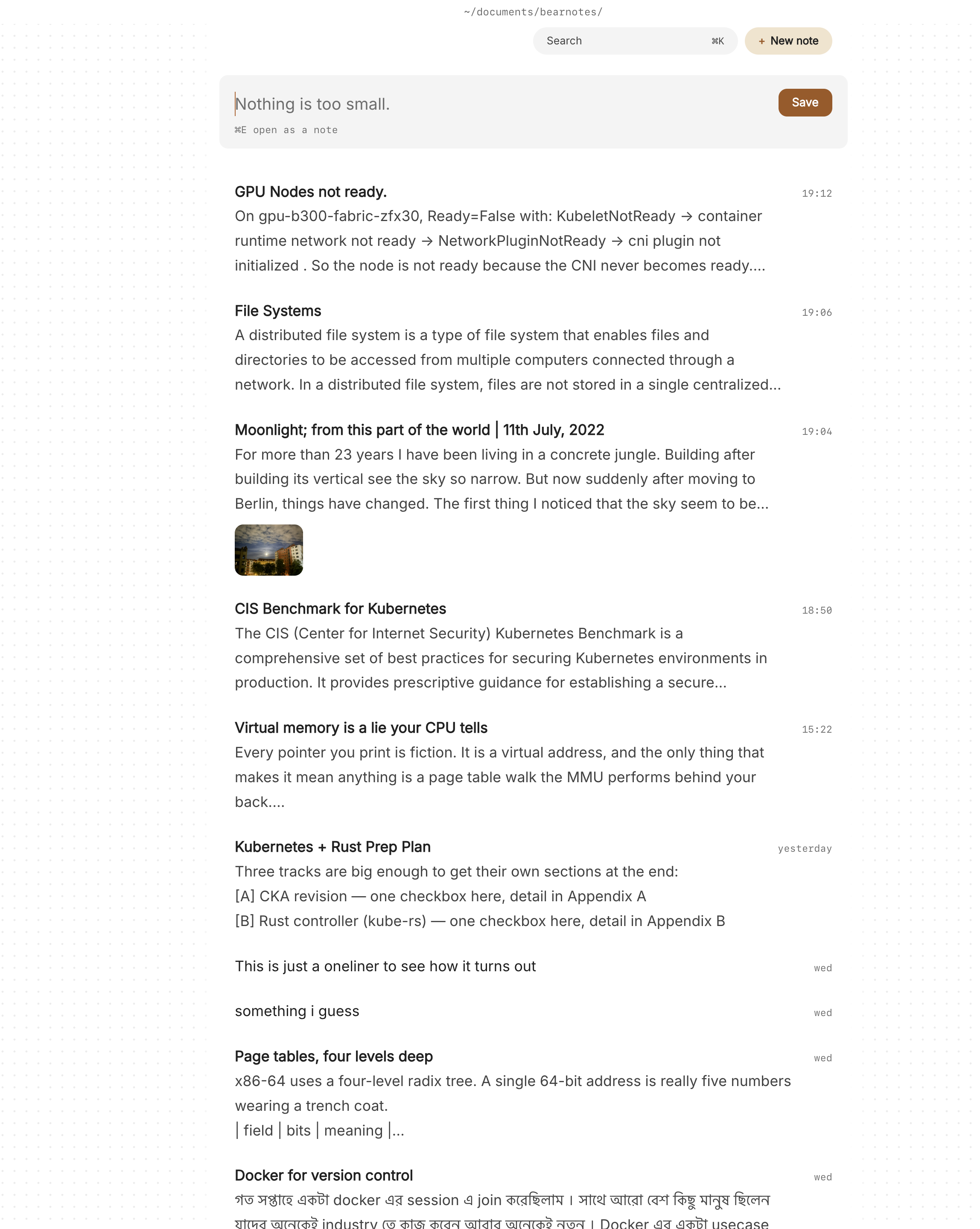
GTD only works if capture is faster than forgetting. Paperkites opens on a capture box, which makes it a natural inbox:
- Type the thought: “Ask the landlord about the boiler service”.
- Press ⌘↩. It’s kept as a fragment, a short note without a title, and the box is empty again.
- If the thought is already a project, press ⌘E instead to open it as a full note.
⏎ is a newline and never saves, and esc never throws a draft away, even if you quit. That matters for capture: nothing you start typing gets lost because you were interrupted.
Fragments land in the list, newest first, with the date shown once per day. That list is your in-tray until you process it.
Clarifying and organizing, one item at a time
Processing the inbox is the step most systems make slow. In Paperkites it’s a walk down the list with the keyboard. j and k move, ⏎ opens, and [d / ]d jump a day at a time if the backlog is a few days deep. For each fragment, ask the GTD question: what is it, and is it actionable?
- Not actionable, but useful. Add a tag or move the text into a note in
reference/. If it’s a someday idea, tag it#someday. - One action. Turn it into a todo:
- [ ] Call landlord about boiler service #at/calls. If it takes less than two minutes, do it now and tick it with ⌘↩. - More than one action. It’s a project. Open or create the note in
projects/, write the outcome at the top, and list the next action as a todo. - Someone else’s move. Write the todo with
#waitingso it turns up when you search for what you’re waiting on.
Links keep the project and its support material together. [[Kitchen renovation]] in a fragment ties it to the project note, and the project note’s backlinks show the sentence each link sits in, so you can see every stray thought that mentions it.
Next actions with :todos
Every todo in every note is part of one list. :todos shows them under four headings:
| Heading | What’s in it |
|---|---|
| Overdue | Todos whose date has passed |
| Today | Todos dated today |
| Upcoming | Todos dated later |
| No date | Everything else |
In GTD terms, Today and Overdue are your hard landscape, the things that really are due, and No date is the bulk of your next actions. The todos docs explain how to give a todo a date. Keep dates for real deadlines, as the book advises, and leave the rest undated.
When you sit down at a context, search for it. / searches the text of every note, and adding a tag narrows it, so / with #at/calls brings up every note with calls in it. ⌘K is the quicker route when you know the project’s name.
:daily opens today’s note, a good place for the day’s short list and anything you capture while doing the work.
An example project note
Here’s a project note called Kitchen renovation in projects/, midway through:
#project #home

Outcome: kitchen usable again with new worktops
and a working extractor, by the end of January.

Quotes and measurements are in [[Kitchen measurements]].
Budget thinking is in the 2 November review.

### Next actions
- [ ] Email two fitters for worktop quotes #at/computer
- [ ] Pick up tile samples from the builder's merchant #at/errands
- [ ] Ask the electrician about the extractor ducting #waiting
- [x] Measure the run from sink to wall

### Notes
- The extractor has to vent through the side wall,
  not the ceiling.
- Worktop: oak or laminate, decide after the quotes.
The outcome is written down, every action is a todo with a context tag, and the waiting item is marked so the weekly review catches it.
The weekly review
GTD lives or dies on the weekly review, so make it a note and a routine. Open a new note in reviews/ each week and work through it with the keys you already use:
- Get clear. Empty the capture box and process every fragment in the list since last week.
[djumps back a day at a time until you reach the last review. - Get current. Open
:todos. Clear anything Overdue: do it, redate it or delete it. Read Upcoming for the next week or two. - Review projects. Open each note in
projects/from the sidebar and check that it has at least one open todo. A project with no next action is stuck. - Check waiting-for. Search
/with#waitingand chase anything that’s gone quiet. - Review someday/maybe. Search
#someday. Promote anything that’s now live intoprojects/. - Tidy.
#empty_kitefinds notes with no tags and:orphansfinds notes nothing links to, which is where half-processed captures tend to hide.
Write a few lines in the review note as you go: what moved, what’s stuck, what you dropped. Over months, those notes become a record of how your projects actually went. For a full list of keys, see keys and commands.
For the reference side of the vault, the Zettelkasten article covers linking ideas in more depth.
Where Pro helps
The free app covers a working GTD system: capture, todos in any note, :todos, tags and search. Two Pro features match GTD closely:
- Areas and projects add Inbox, Today, Upcoming, Anytime, Someday and Logbook. Those map almost one to one onto GTD’s in-tray, hard landscape, next actions, someday/maybe and done list. The areas and projects docs show how to set them up.
- Task markers add five states beyond open and done: scheduled, moved, cancelled, in progress and priority, picked with ⌘⇧↩. “Moved” and “cancelled” record a decision made in the weekly review instead of deleting the line, and “in progress” shows which projects are actually moving.
People pages with @mentions also help with waiting-for, since every sentence that mentions a person collects on their page. Pro is one payment with a 14-day trial, no card needed.
GTD is a habit, not an app: capture everything, decide what each thing is, keep the next action next to its project, and look at the whole system once a week. Keeping all of it in plain markdown files means the thinking and the doing stay in one place, and the weekly review becomes a walk through notes you already wrote.